Adjust Image Brightness, Contrast and Colour Online
Adjust Image
Upload an image to start adjusting.
A preset just fills in the sliders — switch to Adjust to fine-tune it.
Upload an image to start adjusting.
A preset just fills in the sliders — switch to Adjust to fine-tune it.
Adjust Image
Upload an image to start adjusting.
A preset just fills in the sliders — switch to Adjust to fine-tune it.
Upload an image to start adjusting.
A preset just fills in the sliders — switch to Adjust to fine-tune it.
How to Adjust Your Image

1. Upload
Drag a photo in or click to choose one. JPG, PNG, WebP and HEIC all work, and the file never leaves your device.

2. Pick a look
Start from a preset — Auto Enhance, Vivid, Warm, Black & White — or go straight to the sliders and set it yourself.

3. Fine-tune & save
Nudge brightness, contrast, saturation, warmth and sharpness until it looks right, then apply and download.
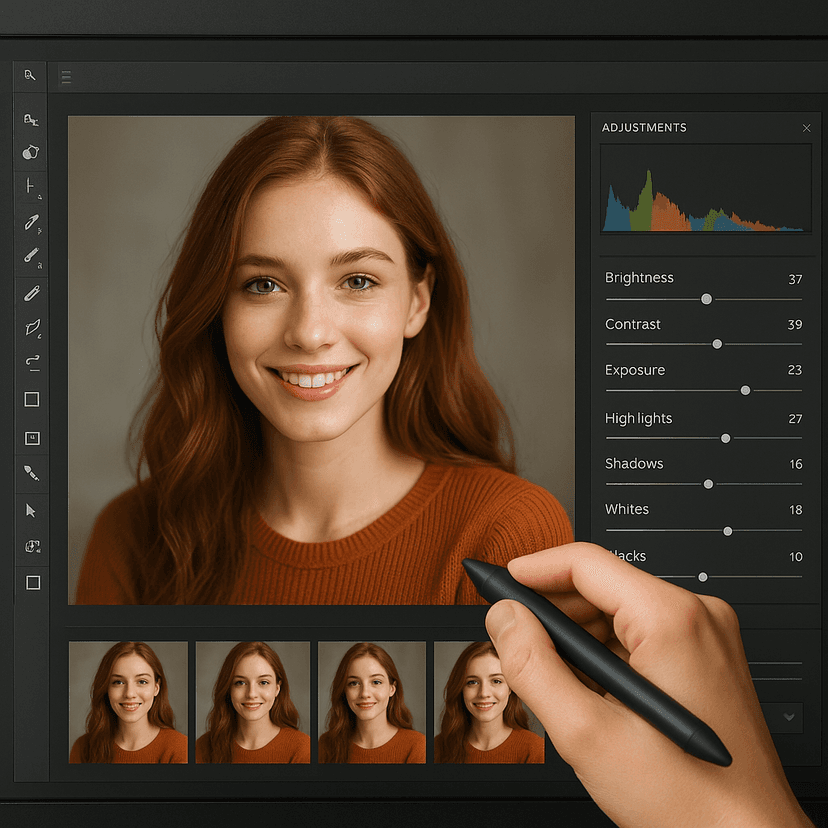
Every slider does one thing, and you can see it.
Brightness and contrast for the overall exposure, midtones for the grey in between. Saturation and vibrance for how strong the colours read — vibrance leaves skin tones alone, which is why portraits usually want that one. Warmth shifts the white balance the way afternoon light does.
Sharpen, blur and grain finish it off. Nothing is guessed for you: the preview updates as you drag, and a double-click puts any slider back to neutral.
Presets to start from, not to settle for.
Auto Enhance, Vivid, High Contrast, Soft, Fade, Warm, Cool, Black & White, Sepia, Vintage and Polaroid each just fill in the sliders. Pick the one closest to what you want, switch to the Adjust tab, and move whatever is off.
No account, no upload, no watermark. The editing runs in your browser and the export is rendered at the original resolution, so the file you download is the size you started with.
Frequently asked questions
How do I brighten a dark photo?+
Upload it and raise the Brightness slider. If it starts to look washed out, add a little Contrast, or use the Midtones slider instead — that lifts the darker areas without flattening the whole picture.
What is the difference between saturation and vibrance?+
Saturation strengthens every colour equally. Vibrance boosts the duller colours more than the ones that are already strong and mostly leaves skin tones alone, so it is usually the better choice for portraits.
Can I fix a photo that looks too blue or too orange?+
Yes — that is white balance, and the Warmth slider handles it. Move it left to cool an orange indoor shot, right to warm a blue one taken in shade.
Does this use AI?+
No. Every change is a slider you set yourself, applied as a standard image operation. The presets are just saved slider positions, so you can see exactly what each one did and change it.
Are my photos uploaded anywhere?+
No. The adjustments run entirely in your browser — the file never leaves your device.
Will adjusting reduce the image quality or size?+
The result is rendered at the original resolution and exported as a PNG, so you keep the dimensions you started with. Repeatedly applying and re-applying will compound rounding, so it is best to get it right in one pass.
How do I undo an adjustment?+
Reset discards anything you have not applied yet. Double-clicking a single slider returns just that one to neutral.